
Grok Bot in Practice: Connect a Real Workflow (Part 3 of 4)
Forty neighbors signed up for the park cleanup. Some wrote "mornings." One wrote "after 2, unless it rains." Two signed up twice. You need a shift chart, a reminder for each person, and a calendar
Article
Job breakdowns
Forty neighbors signed up for the park cleanup. Some wrote "mornings." One wrote "after 2, unless it rains." Two signed up twice.
You need a shift chart, a reminder for each person, and a calendar hold for the organizers. Doing it by hand takes an evening. Letting a Bot email forty people while you make tea is a bad evening of a different kind.
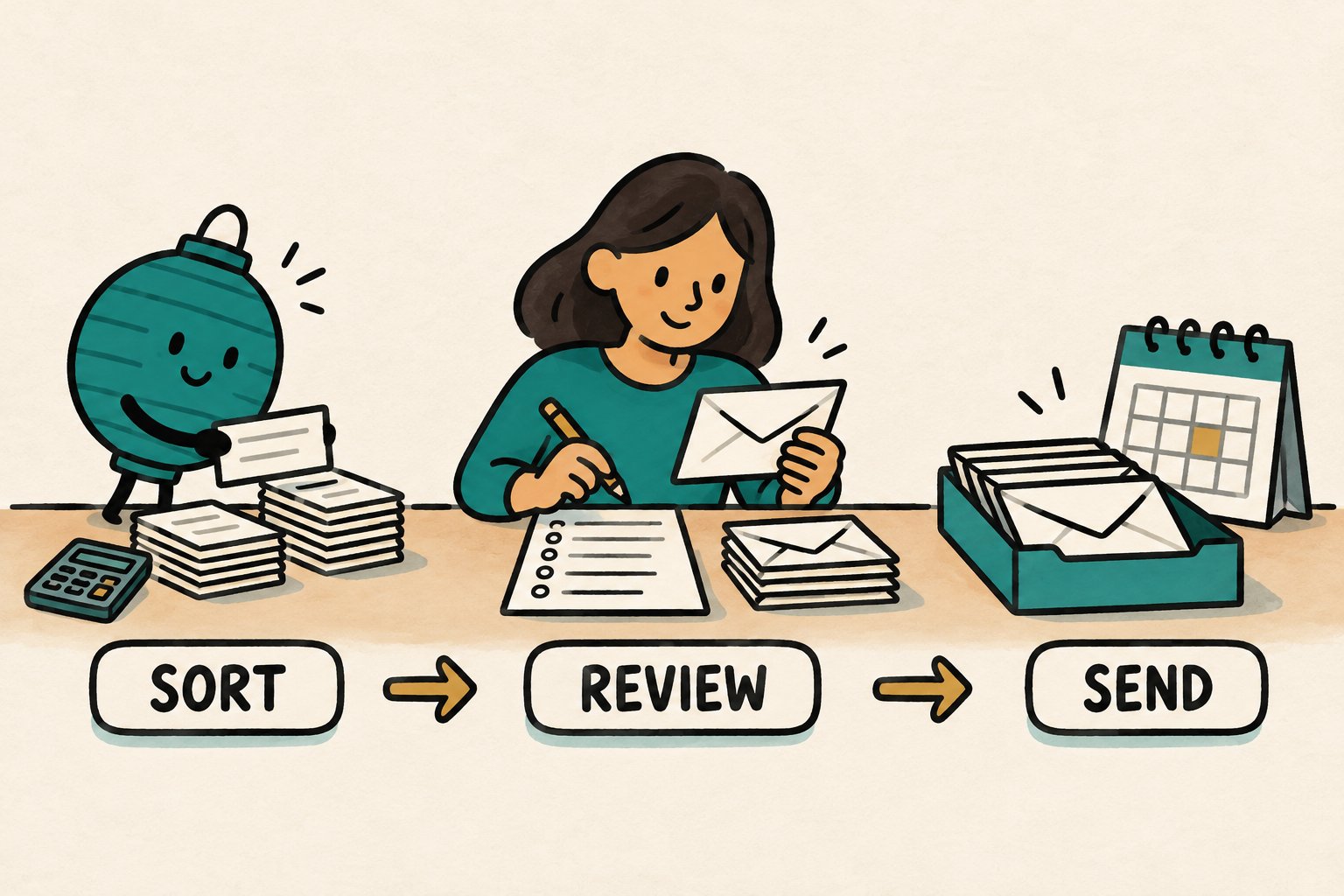
So split the job. The Bot sorts and drafts. Your own checks confirm the numbers. The real mailbox and calendar, not the Bot's report, tell you what actually happened.
You need a Bot, a sign-up CSV to attach, and Python 3.7 or later if you want the optional independent count. The email and calendar steps need a connected app, or a website you are signed in to on the Bot's computer.
Instructions are not controls
Everything you type to the Bot, including "do not send," is a request. A Bot can misread a request, or lose it somewhere in a long conversation.
A control is different. It sits outside the Bot's own judgment and stops an action until you act. An approval card you have to answer is a control, as long as the Bot's model doesn't decide whether the card appears. An app you never connected is only a partial one, because the Bot may still reach the same service through a website signed in on its computer. Check both routes.
Whether an email or calendar action shows you a draft card or an approval card depends on the connector or website in use. You will find out which you have before anything real goes out.
Give the Bot the whole event
A Bot cannot write a correct reminder from a vague brief. Put the facts in one block and reuse it. The details here are practice data:
Event: Elm Park Cleanup. Date: Saturday 2026-11-07, time zone America/Chicago. Shifts: 8:00 to 10:00, 10:00 to 12:00, 12:00 to 14:00. Meet at the Maple Street gate of Elm Park. Arrive 15 minutes before your shift. Bring gloves and a water bottle. Reply to cleanup@example.org.
Stage 1: sort the roster, send nothing
First decide who counts as the same person. Here, identity is the email address, trimmed and lowercased. When two entries share an identity, the one with the newest submitted_at wins.
Below is a small practice file with 12 rows. Everything in Stage 1 is a dry run. The example.org addresses are reserved for examples, no real people are involved, and nothing is sent. Save it as signups.csv:
Attach it and give the rules exactly:
Attached is the cleanup sign-up sheet. Identity is the email address, trimmed and lowercased. For duplicates keep only the entry with the newest submitted_at and list the removed ones. Availability values: 8-10, 10-12, 12-2 mean that shift only. mornings means 8-10 or 10-12. any means all three. Anything else goes to a list called Needs Question. Process kept people in alphabetical order by email. Put each in the first eligible shift that has fewer than 3 people. If every eligible shift is full, list them as No Eligible Shift. Return counts and a chart as a spreadsheet. Do not email anyone or touch the calendar.
Rules this tight leave only one right answer, which means you can check it. Gus's "after 2, unless it rains" is a judgment call, and it should land in front of a person, not get settled by the Bot.
Check the Bot against a second count
When a helper does the sorting, it is worth having a second opinion that does not share its habits. This short script is that second opinion.
Save it as reconcile.py in a scripts folder, separate from the folder holding signups.csv. It uses only the standard library, reads the CSV, and changes nothing. It accepts timestamps without offsets only when they are all in the same time zone, and it stops if two entries for one person tie for newest. If your data mixes offsets, normalize them first.
Run it with a cap of 3:
I ran the script on this practice file on my own computer, and the output matched what follows. I did not try any of the email or calendar steps in this article, so the screens on your side may look a little different.
With a cap of 2, the result is 2, 2 and 2 placed, 3 with no eligible shift (dev, ian, jo), and 1 in Needs Question, which reconciles as 2+2+2+3+1=10.
Now compare the Bot's spreadsheet to these numbers. If they differ, do not split the difference. Ask the Bot to show the specific rows where it departed from your rules. Usually it is one row, and it is usually an interesting one.
With 40 real submissions the same arithmetic applies. Start with submissions, subtract older duplicates, subtract Needs Question, subtract No Eligible Shift, and what is left is the number of drafts you should expect. In the sample at cap 3 that is 12 - 2 - 1 - 2 = 7 drafts.
It is also worth seeing the script fail on purpose. Copy the file and rename the availability header to avail. The script should print "STOP: missing columns: availability" and no counts. When you see STOP, fix the input before drafting anything.
Stage 2: find out what actually pauses
Do this once per connector, before the real batch. It takes about five minutes, and it tells you whether your safety net is a net or a painting of one.
First, turn on Auto-review at Settings, General, Auto-review, and add an explicit Ask first rule for every email send. Look through your settings for permissive rules such as Always allow, and remove them. Then ask the Bot to send one email to your own mailbox with the subject CONTROL TEST. This is a real send, so use only your own address, never one from the roster.
Then notice what happened before the message went out:
If you get an approval card, choose Allow once while the workflow is new. (An editable draft is different: you press Send email or Discard there, not Allow once.) Always allow can save a rule that quietly fires again later. Also remember that what you saw covers only the action you tried. It does not promise the same pause for every later action.
Keep this workflow in a conversation you are watching. Team Bots have one exception worth knowing. In a conversation where nobody can answer an approval, a Team Bot runs without Auto Review unless the team requires it, within the permissions it has been given. Do not assume that applies to your personal conversations, and do not assume a review step will always be there.
For logins, use Take over, sign in yourself, and choose I'm done. Never paste a password or code into the chat.
Stage 3: draft, starting with a test batch
Ask for three sample reminders, addressed to you:
Write reminders for ben, ana and priya using the event block. Friendly, under 90 words, with shift time, meeting spot, what to bring, and reply address. Prepare drafts only. Address these three to me, and start each body with TEST FOR followed by the real address.
Read them looking for contradictions. Here is a made-up example: "Hi Priya, your shift is 12 to 2. Please arrive by 10:45." The arrival time is wrong, because 15 minutes before noon is 11:45. When you catch one, ask the Bot to scan every draft for the same mistake.
Then discard the test drafts. Do not edit one and forward it. Ask for a fresh batch built from the chart, using your real roster addresses (seven in the practice run, which is never sent), and check that no draft still points at you.
If your setup shows no draft card, stop at a text draft and send it by hand. A message in the chat is not a send.
Stage 4: review and send
Check the batch against the roster, not against the Bot's description of it:
-
The count matches the formula above, 7 in the sample.
-
Recipients are exactly the placed people, with no extras, and none of the Needs Question or No Eligible Shift people.
-
Names, shift times and the arrival time match the chart.
Press Send email (or Send message in Slack-style apps) only after that. If something looks wrong mid-run, send a message right away, or say Stop now. Stop now ends the work, but it does not recall anything already sent.
A calendar hold, with a check
Wait until the drafts are done. Checking your email controls does not test the calendar, so add and review an Ask first rule for calendar actions too. Then ask for one hold on your own calendar:
Create one calendar event: Elm Park Cleanup setup and wrap, Saturday 2026-11-07, 07:30 to 14:30, time zone America/Chicago. No guests. Do not send invitations.
Guests would trigger invitation emails, so add organizers by hand if you want them there. Answer Allow once if a card appears. If no calendar connector fits, create the event yourself, which takes about two minutes.
Look in the real mailbox and calendar
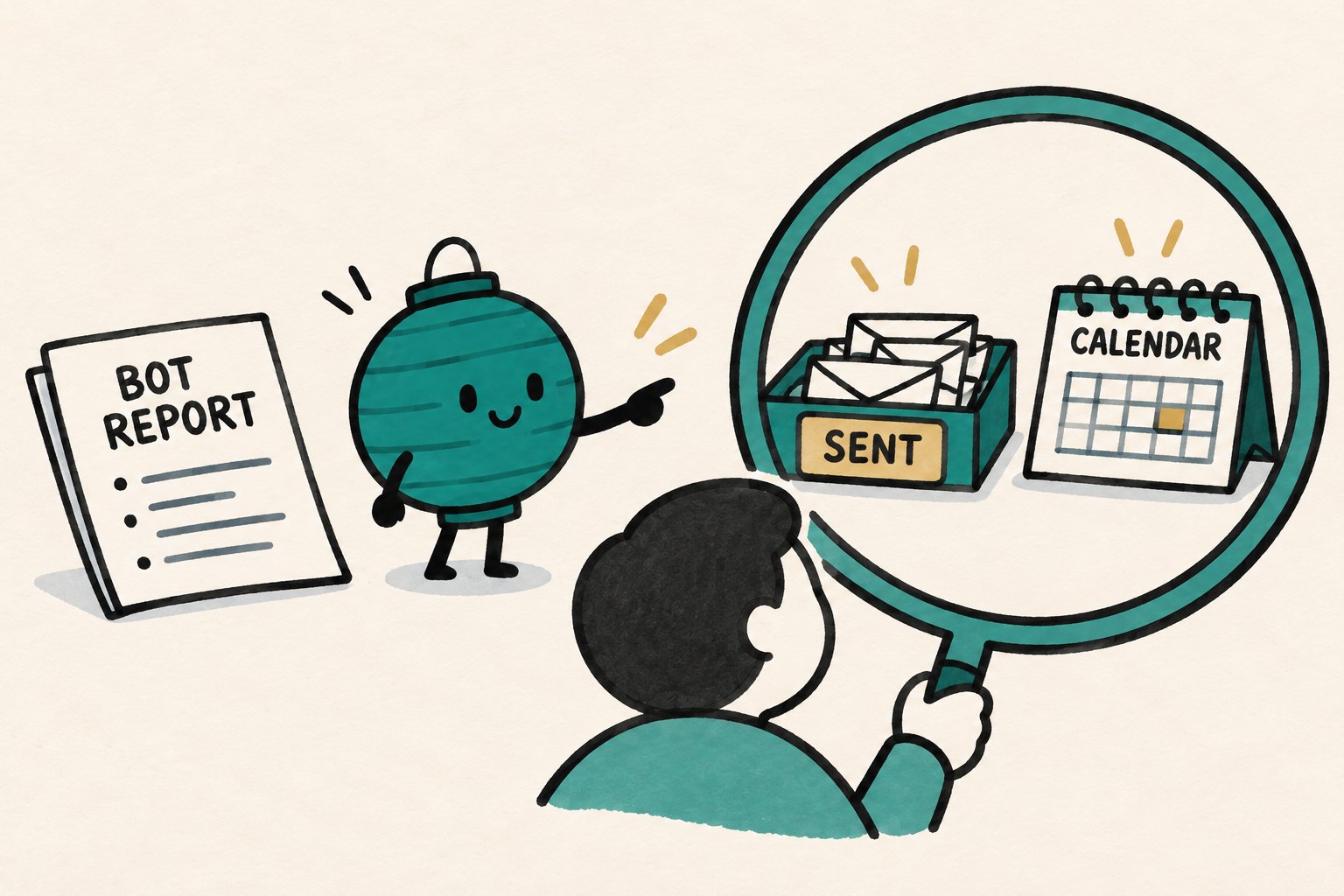
Ask the Bot for a receipt listing files, drafts, sends and open items. It is a handy pointer to where to look, but it is the Bot's account of events, not the events themselves. Then check:
-
Sent folder: one message per placed person (7 is only what you would expect if your real roster matched the sample), recipients equal the placed list, subjects correct. Open two.
-
Calendar: open the event and confirm the date, 07:30 to 14:30, the time zone, and no guests.
-
Drafts folder: nothing left over, especially no test draft with your address.
If the receipt and the mailbox disagree, believe the mailbox. Then follow up yourself with the Needs Question and No Eligible Shift people, or ask the Bot for a separate batch of drafts for them.
Button names and card layouts vary from one connector to the next, so yours may look different from what is described here. Try the script on your own machine and your own data before you lean on it.
When this fits
This pattern suits anything with a list, some rules and a pile of messages: recitals, tournaments, class parents. Where one wrong message would be costly and cannot be undone, send fewer, review longer, and keep every send in your own hands.
Published on grokbot.sh. Cite the public log, not a prompt pack.