
Full Tutorial Guide: Grok AGENTS
Grok Bot is xAI’s system of AI teammates. Each bot runs on a cloud computer, signs into real apps and websites, and completes work end-to-end. The most important architectural fact All bots on one
Article
Job breakdowns
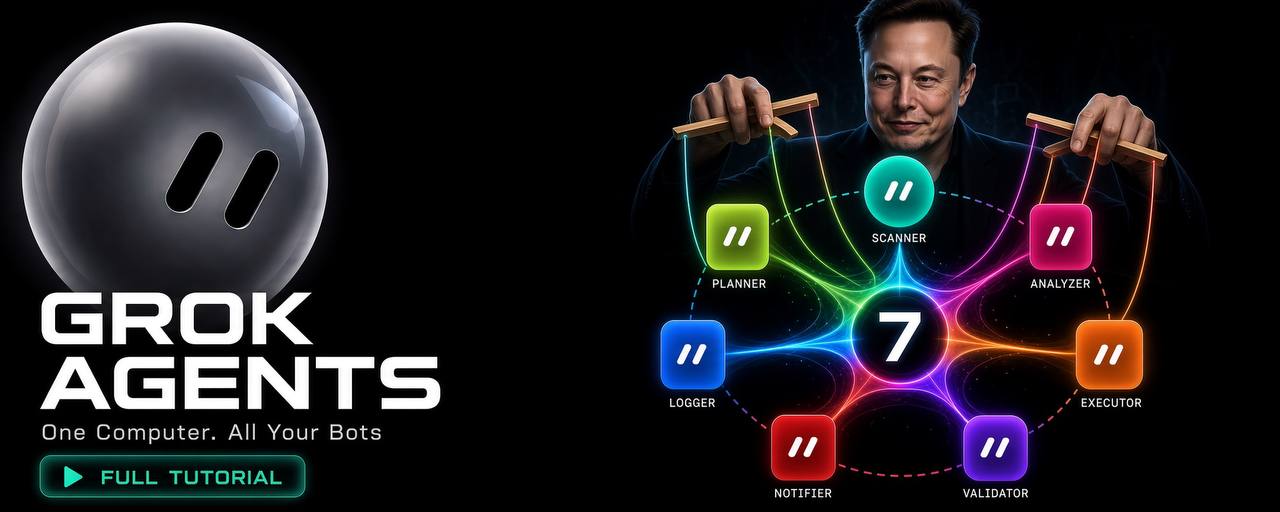
Grok Bot is xAI’s system of AI teammates. Each bot runs on a cloud computer, signs into real apps and websites, and completes work end-to-end.
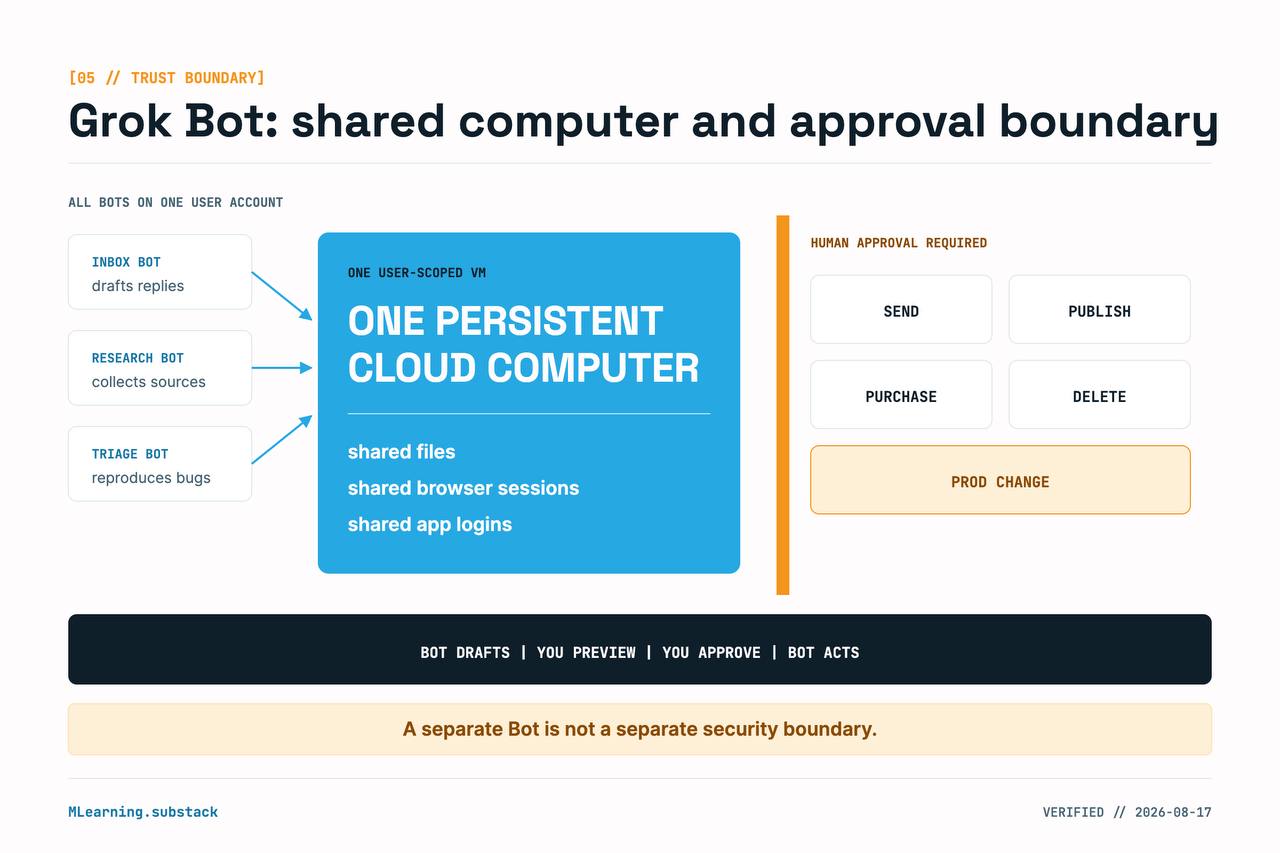
The most important architectural fact
All bots on one account share one persistent cloud computer.
Each bot gets its own screen, but files, browser sessions, and logins are shared.
Official statement from xAI documentation:
“Do not use separate Bots as a security boundary.”
- Requirements and access
Eligible plans: SuperGrok Plus / Heavy, Cursor Pro+ / Ultra, or Cursor Teams
Cursor account (authentication and data settings are handled by Cursor) • Supported platforms: macOS, Windows, iOS 18+
- Installation and sign-in
1. Download the app from x.ai/bot or cursor.com/bot/onboarding.
1. Download the app from x.ai/bot or cursor.com/bot/onboarding.
-
Download the app from x.ai/bot or cursor.com/bot/onboarding.
-
Install and launch it.
-
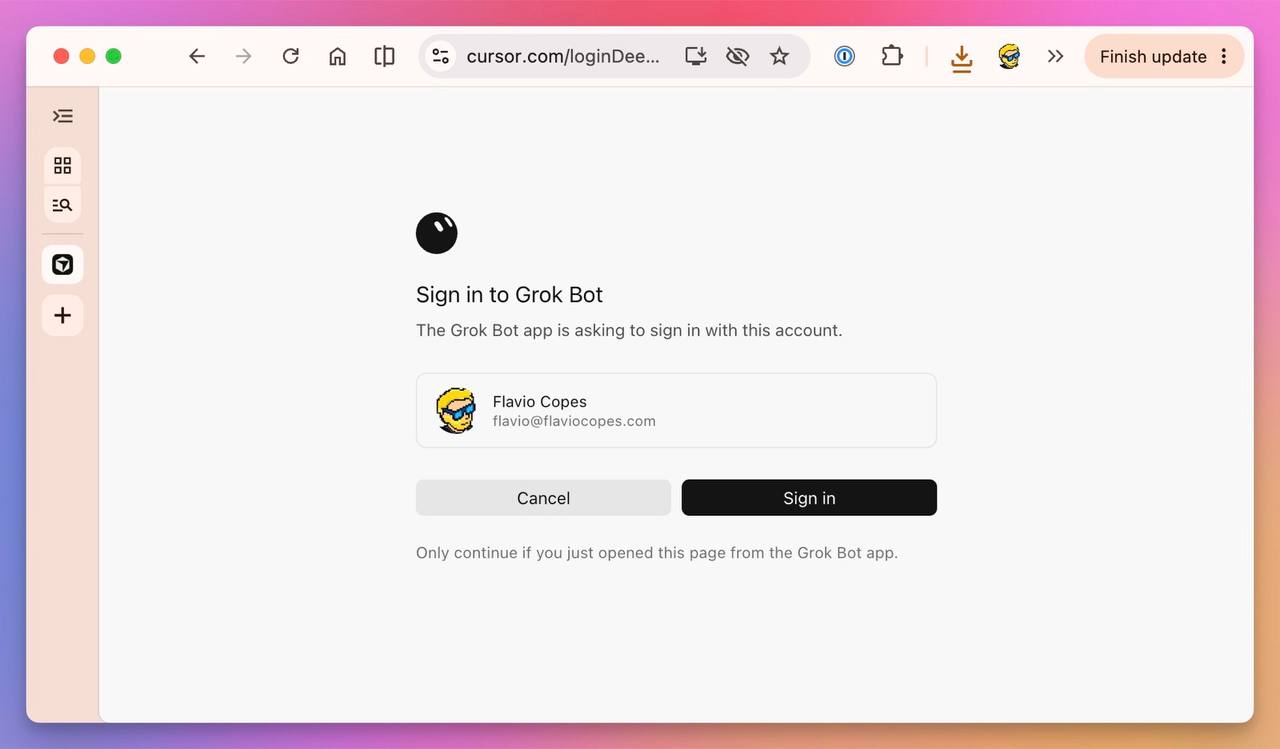
Click Sign in with Cursor.
-
Creating your first bot
-
Click New → Create new agent.
-
Set the name, role, description, and avatar via Edit Profile.
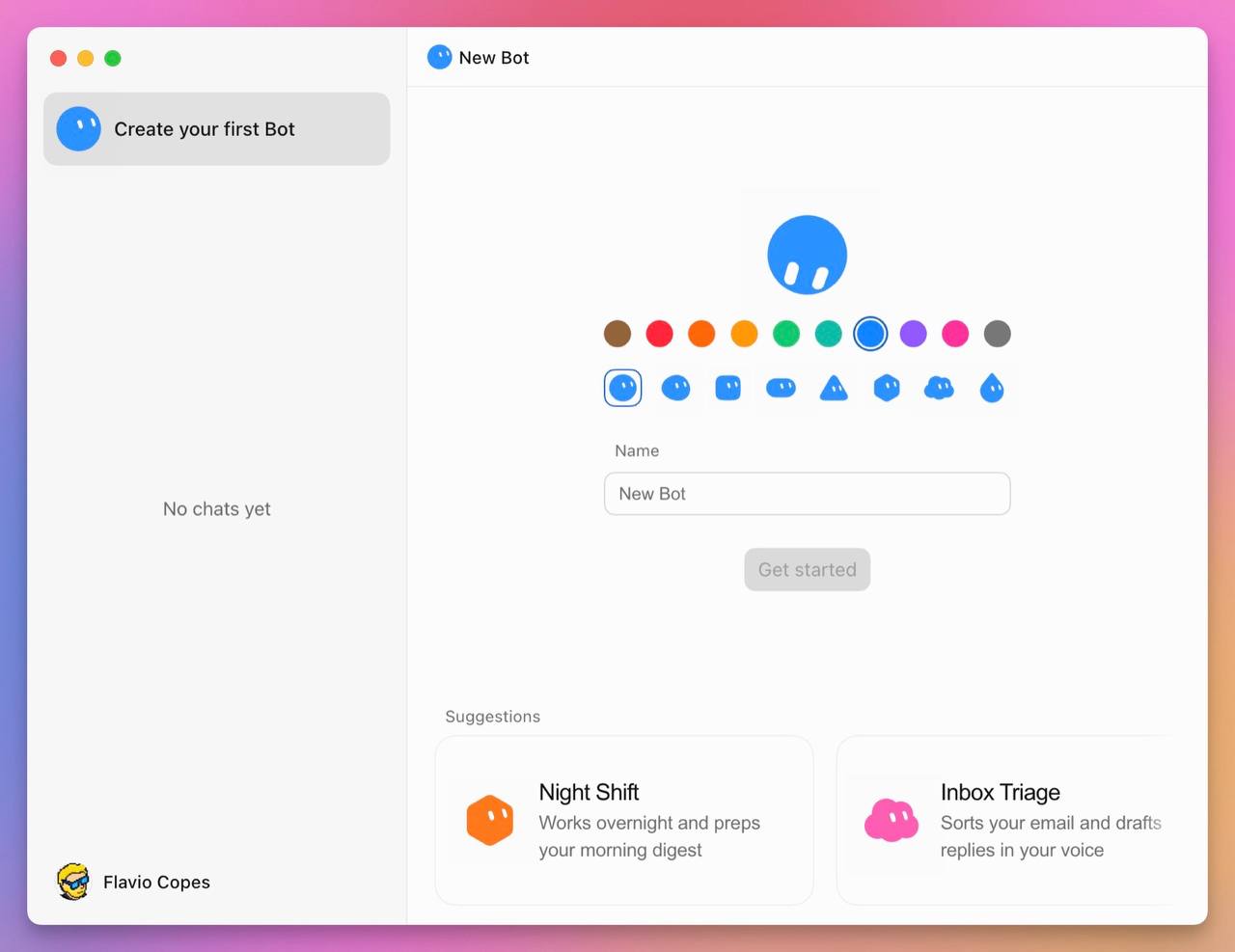
Good role description example:
Own weekly account-health review. Never contact customers or change accounts without approval.
Limit: up to 50 bots + group chats per account.
- Interface and giving tasks
Left sidebar — list of bots.
Center — chat.
Right side (or via button) — Agent Computer screen.
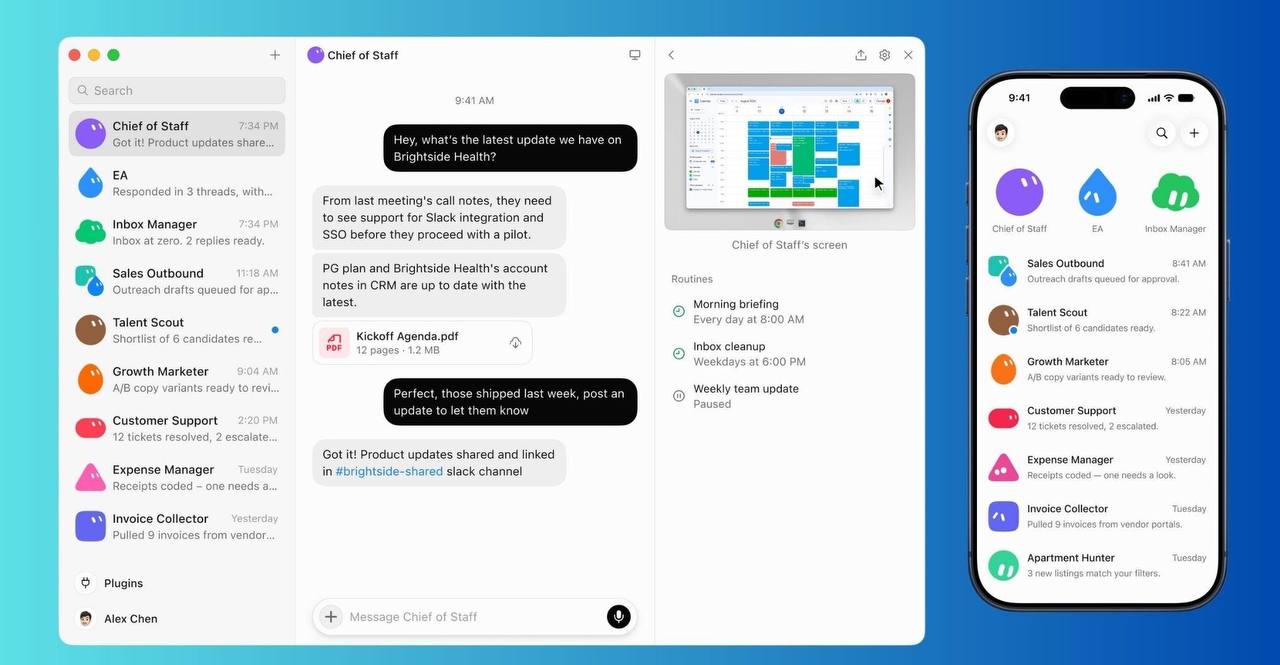
Write to the bot like a teammate. A strong request always includes:
Desired outcome
Sources
Constraints
Deliverable format
When to stop for your approval
- Shared computer and takeover
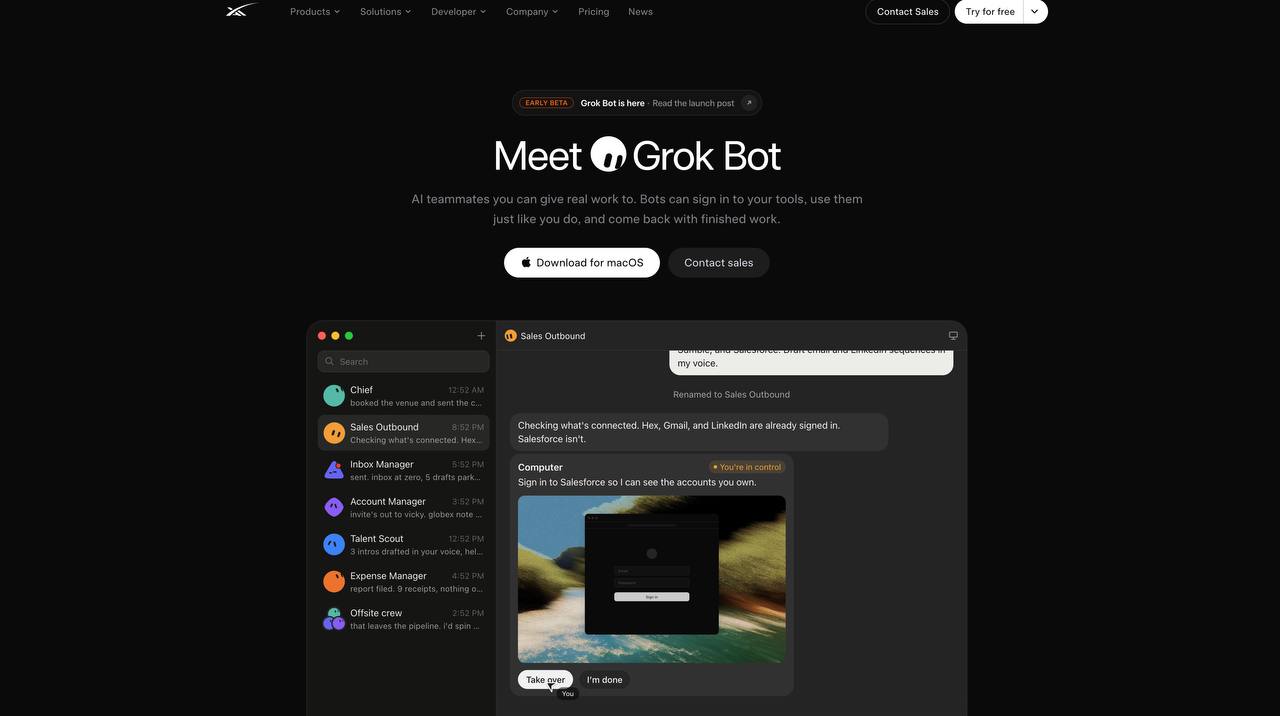
Open Agent Computer to watch the bot work in real time.
When the bot needs a password, 2FA, CAPTCHA, or payment confirmation, it hands control to you:
-
Click Take over
-
Complete the sensitive step yourself
-
Return control with I’m done
Never send passwords or one-time codes in regular chat.
- Managing bots
From the bot menu you can:
Edit Profile
Duplicate
Hide
Delete
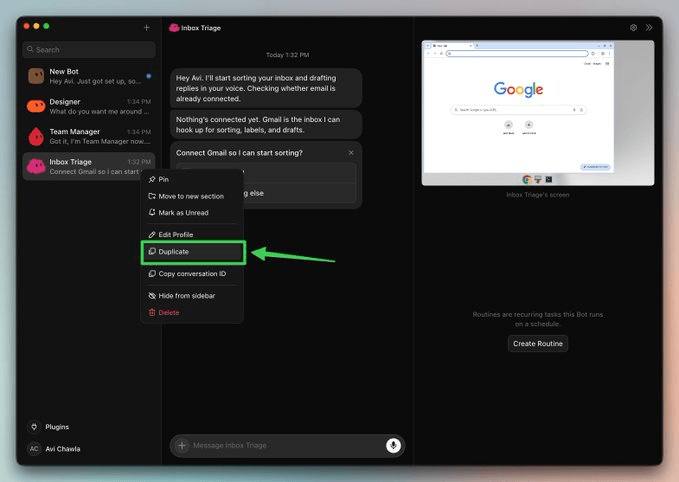
Important: Deleting a bot only removes its profile, conversation, and routines.
Files and logins on the shared computer may remain. Always revoke access in the external services separately.
- Security and approvals
• Grant access at the account level
• Put clear boundaries in the bot description and every request
• Create narrow Require Approval rules in Settings → Auto-review
• For local computer access, start with Never allowed
Group chats, Skills, and Routines all run on the same shared machine.
-
Recommended safe pilot
-
Create 1–3 focused bots
-
Start only with reversible tasks (research, drafts, triage)
-
Keep payments and production systems out of the pilot
-
Set Require Approval for all external actions
-
Weekly check what has accumulated on the shared computer
Quick reference
• Marketing says “its own computer” → architecture says “one shared computer per account”
• A separate bot is not a security boundary • Secrets only via takeover
• Deleting a bot ≠ cleaning up its traces
• Authentication and data are governed by Cursor Official documentation: docs.x.ai/grok-bot
• Authentication and data are governed by Cursor Official documentation: docs.x.ai/grok-bot
Published on grokbot.sh. Cite the public log, not a prompt pack.