
15 Obsidian Workflows That Quietly Save Me 15+ Hours Every Single Week
Most people treat Obsidian as a notes app. Save this if you are doing that too! The real time savings come from a small set of repeatable workflows that capture, organize, retrieve, and ship work
Article
Job breakdowns
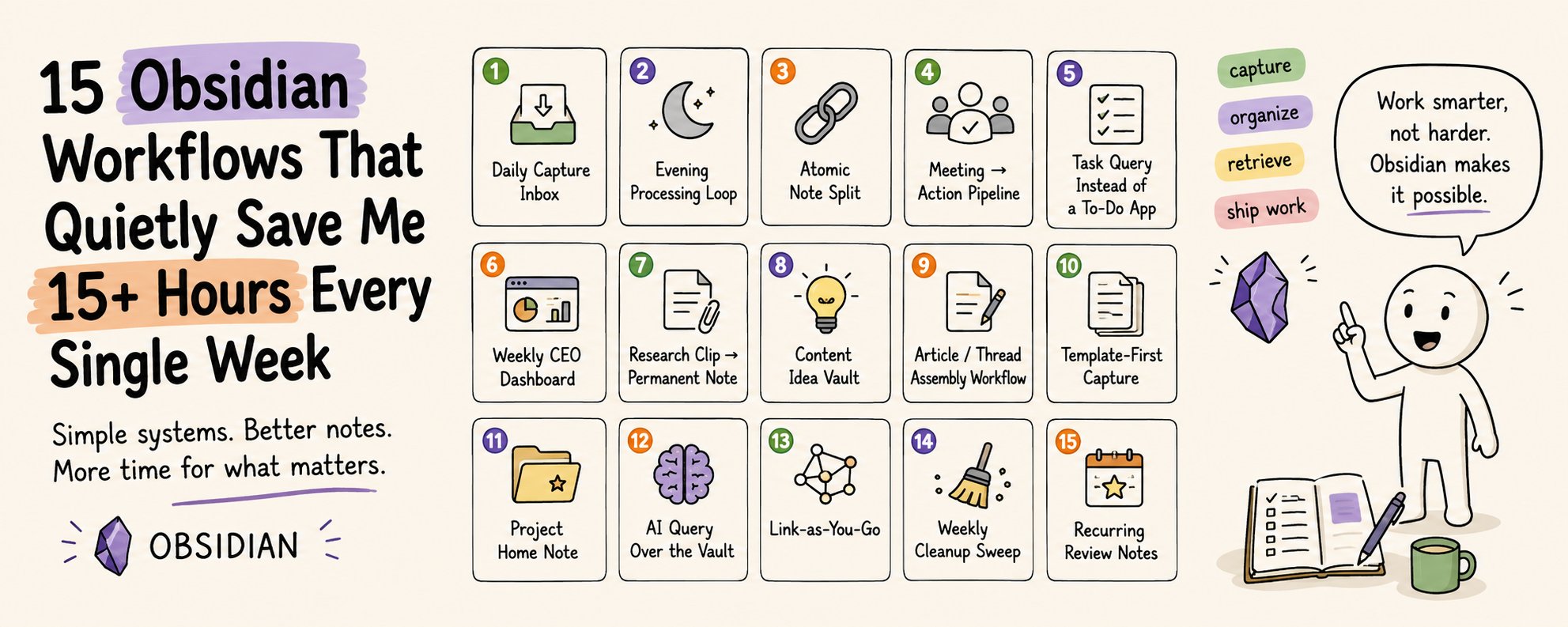
Most people treat Obsidian as a notes app. Save this if you are doing that too!
The real time savings come from a small set of repeatable workflows that capture, organize, retrieve, and ship work without extra tools.
These 15 workflows are the ones that quietly return 15+ hours every week not by adding complexity, but by removing friction.
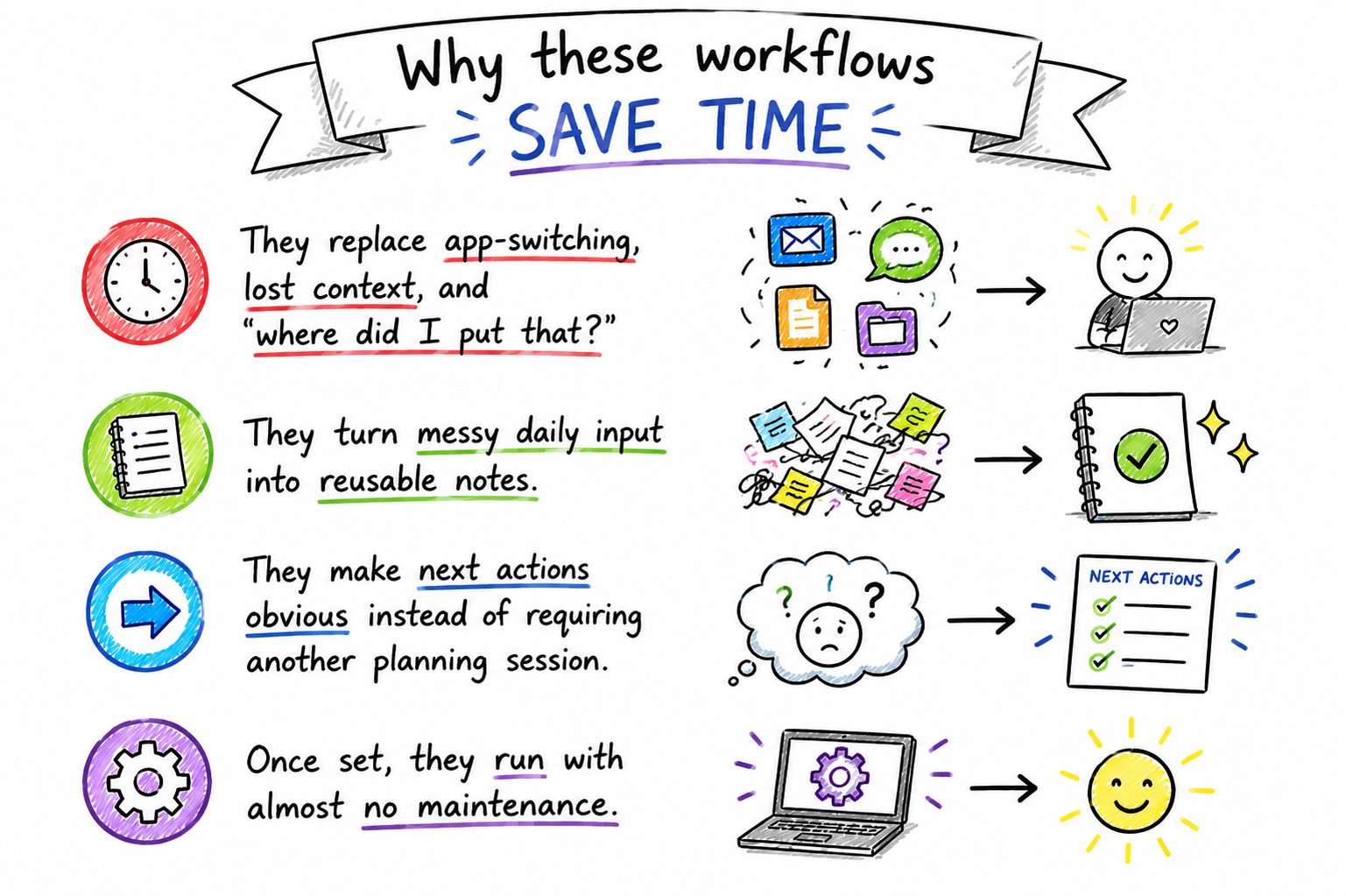
Why these workflows save time
They replace app-switching, lost context, and "where did I put that?"
They turn messy daily input into reusable notes.
They make next actions obvious instead of requiring another planning session.
Once set, they run with almost no maintenance.
The 15 workflows
1. Daily Capture Inbox
One inbox note for the day.
Everything lands here first ideas, links, tasks, voice dumps. No organizing in the moment.
How it works:
-
Open today's daily note.
-
Under an "Inbox" section, dump everything: thoughts, URLs, tasks, half-formed ideas.
-
Do not file, tag, or structure yet. Speed matters more than structure.
Time saved: ~30 minutes/day of not deciding where things belong.
2. Evening Processing Loop
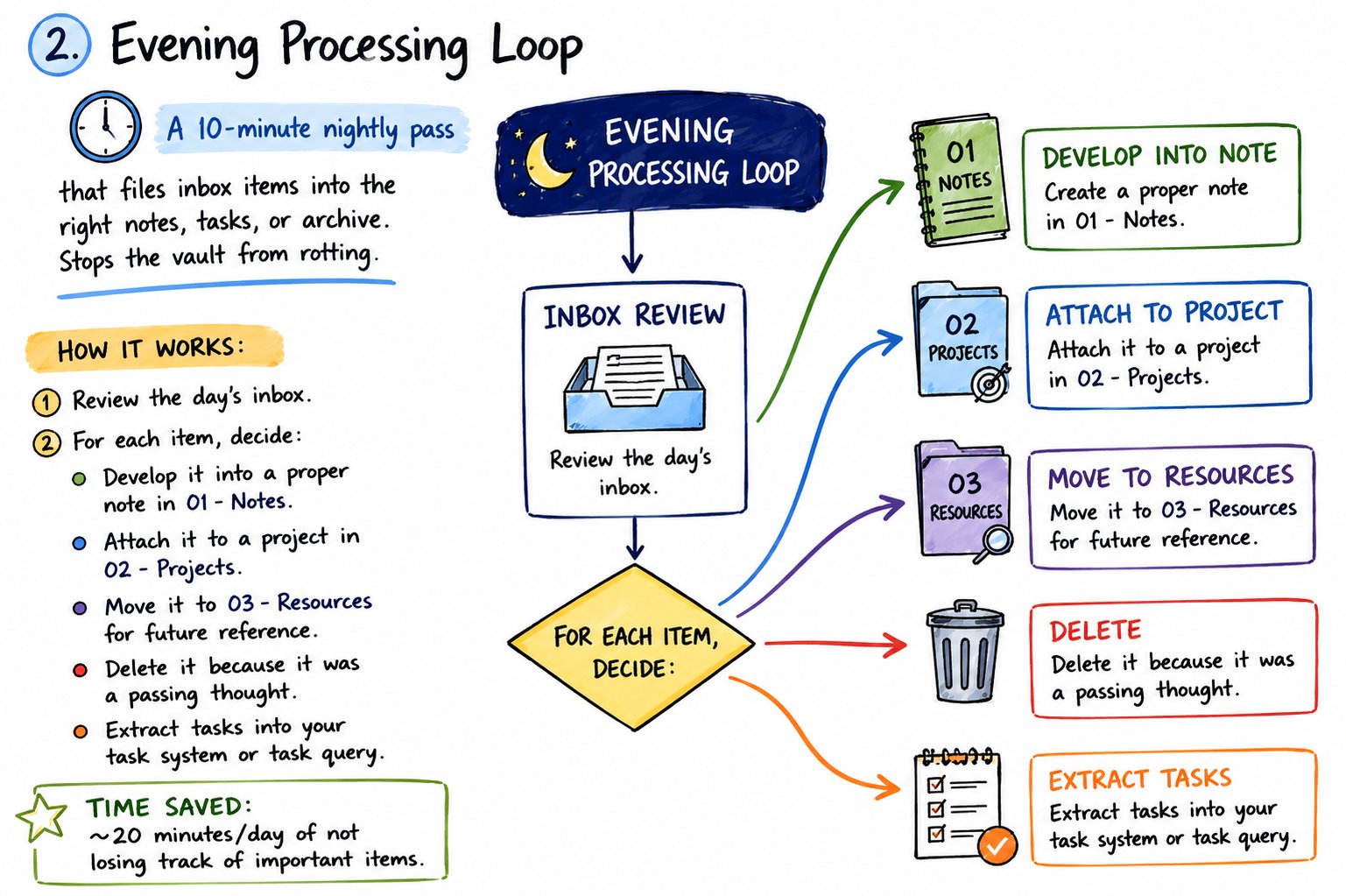
A 10-minute nightly pass that files inbox items into the right notes, tasks, or archive. Stops the vault from rotting.
How it works:
-
Review the day's inbox.
-
For each item, decide: Develop it into a proper note in 01 - Notes. Attach it to a project in 02 - Projects. Move it to 03 - Resources for future reference. Delete it because it was a passing thought.
-
Extract tasks into your task system or task query.
Time saved: ~20 minutes/day of not losing track of important items.
3. Atomic Note Split
One idea = one note.
Long dumps get split so they can be linked and reused later
How it works:
-
When processing inbox items, if a note contains multiple ideas, split them.
-
Create separate notes for each concept.
-
Link them together with [[ ]] syntax.
Time saved: Hours of not rereading long, unfocused notes to find one idea.
4. Meeting → Action Pipeline
Raw notes go in. A template extracts decisions, owners, and next actions. Meeting notes stop being a graveyard.
How it works:
-
Use a meeting template with sections: Attendees Agenda Key points Decisions made Action items (with owners and due dates) Follow-ups
-
After the meeting, extract action items into your task query.
-
Link the meeting note to relevant project notes.
Time saved: ~1 hour/week of not losing track of commitments.
5. Task Query Instead of a To-Do App
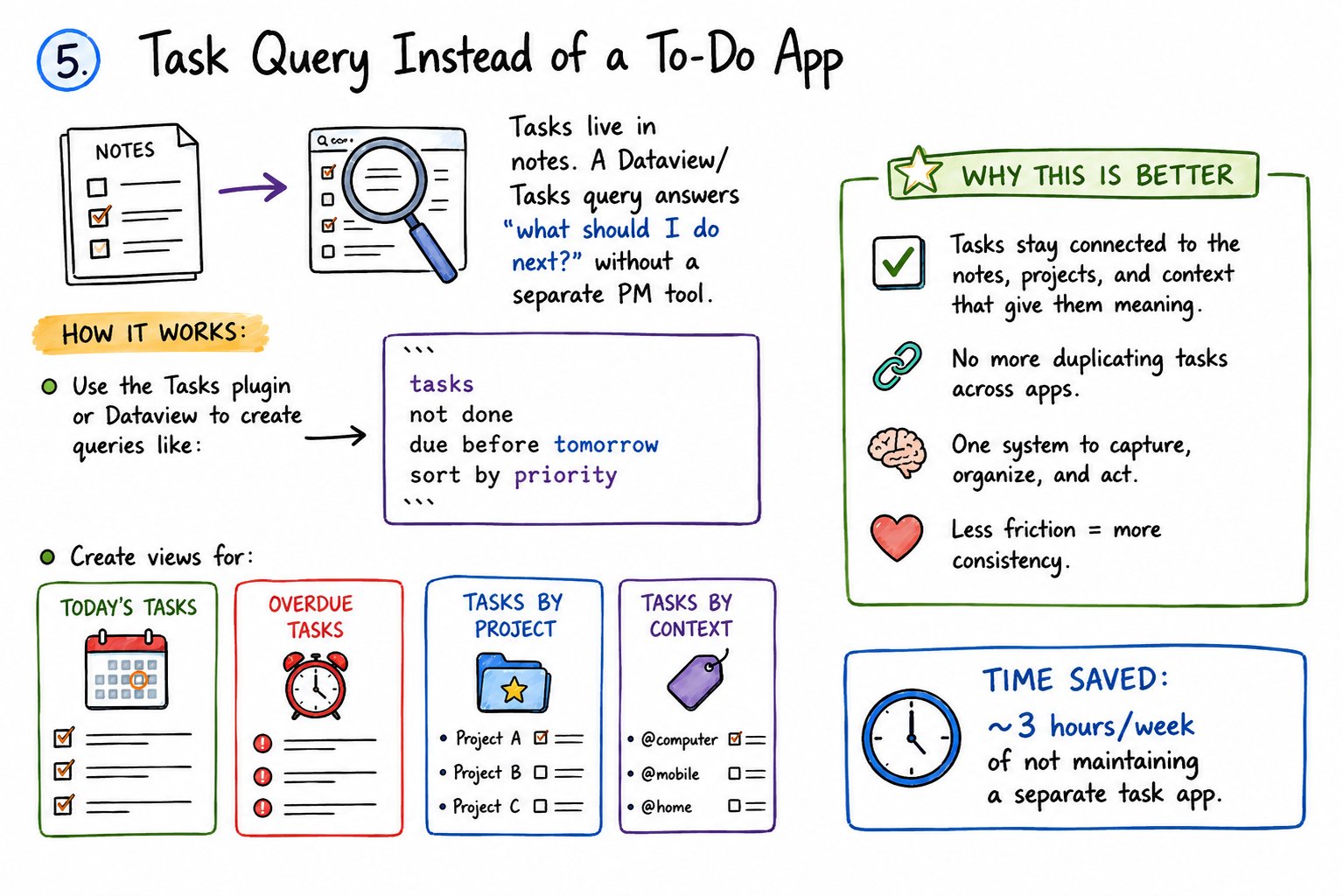
Tasks live in notes. A Dataview/Tasks query answers "what should I do next?" without a separate PM tool.
How it works:
-
Use the Tasks plugin or Dataview to create queries like:
-
Create views for: Today's tasks Overdue tasks Tasks by project Tasks by context
Time saved: ~3 hours/week of not maintaining a separate task app.
6. Weekly CEO Dashboard
One note that pulls open projects, overdue tasks, and unfinished ideas. Weekly review takes minutes, not an hour.
How it works:
-
Create a weekly template that: Links to all seven daily notes from that week. Queries open projects and their status. Shows overdue tasks. Lists unfinished ideas or drafts.
-
Use Dataview to auto-populate sections.
-
Spend 20–30 minutes every Sunday reviewing and planning.
Time saved: ~45 minutes/week of faster reviews.
7. Research Clip → Permanent Note
Web clips and highlights get a short rewrite in your own words, then get linked. Reading time becomes reusable knowledge.
How it works:
-
Clip articles to an inbox folder.
-
When processing, rewrite key insights in your own words.
-
Create permanent notes for each major concept.
-
Link to related notes and sources.
Time saved: ~2 hours/week of not re-reading the same articles.
8. Content Idea Vault
Every idea is captured with a hook, angle, and source. When it's time to write, you pick from a list instead of starting blank.
How it works:
-
Use a content idea template with: Core idea Hook options Target audience Possible formats (post, thread, email, video) Status (seed, draft, scheduled, published)
-
Store all ideas in a Content Ideas folder.
-
Query by status when planning content.
Time saved: ~2 hours/week of not staring at a blank page.
9. Article / Thread Assembly Workflow
Outline note + linked research notes + draft note. Writing becomes assembling, not hunting for material.
How it works:
-
Create an outline note with sections.
-
Link to relevant research notes and concept notes.
-
Write the draft in a separate note.
-
Use the outline to stay on track.
Time saved: ~3 hours/week of faster writing.
10. Template-First Capture
New notes start from templates (daily, meeting, project, concept). Structure is automatic, so you never rebuild the same format.
How it works:
-
Use the Templates plugin.
-
Create templates for: Daily notes Meeting notes Project notes Concept notes Content ideas
-
Set hotkeys or use the command palette to insert templates quickly.
Time saved: ~1 hour/week of not recreating structures.
11. Project Home Note
Each project has one hub: goal, status, links, next action. No more jumping between five apps to remember where a project stands.
How it works:
-
Create a project template with: Goal Current status Next actions Related notes and links Blockers or risks
-
One note per project, stored in 02 - Projects.
-
Update status weekly.
Time saved: ~2 hours/week of not losing track of project context.
12. AI Query Over the Vault
Ask Claude/Grok against your notes: "What did I already decide on X?" Retrieval replaces rereading.
How it works:
-
Use an AI automation tool (Claude Code, OpenClaw, etc.) to query your vault.
-
Ask questions like: "What did I decide about [topic]?" "What are my open questions on [subject]?" "Summarize my thinking on [concept]."
-
Get synthesized answers without manual searching.
Time saved: ~2 hours/week of not rereading old notes.
13. Link-as-You-Go
New notes get 2–3 links immediately. The graph stays useful because connections are created at capture time, not later.
How it works:
-
When creating a new note, ask: What existing notes does this relate to? What projects does this support? What concepts does this build on?
-
Add 2–3 [[ ]] links before closing the note.
Time saved: ~1 hour/week of not retroactively linking notes.
14. Weekly Cleanup Sweep
Archive stale notes, merge duplicates, fix empty stubs. 15 minutes a week prevents a bloated, unsearchable vault.
How it works:
-
Every week, spend 15 minutes: Archiving old, unused notes. Merging duplicate concepts. Deleting empty stubs. Fixing broken links.
-
Use the "Unlinked references" panel to find orphaned notes.
Time saved: ~1 hour/week of not dealing with vault rot.
15. Recurring Review Notes
Monthly / quarterly notes that pull wins, open loops, and themes. Planning becomes review, not reconstruction from memory.
How it works:
-
Create monthly and quarterly review templates.
-
Use Dataview to pull: Completed tasks and projects. Key decisions made. Themes and patterns. Open questions and next priorities.
-
Review and adjust direction based on actual progress.
Time saved: ~2 hours/month of faster planning.
How the hours actually add up
These are conservative estimates. The real gain is compounded focus and reduced mental load.
The setup that makes them work
Keep folders simple:
-
00-Inbox
-
01-Daily
-
02-Projects
-
03-Concepts
-
04-Resources
-
05-Archive
Use a few templates only. One processing habit beats a perfect system.
Let queries and links do the organizing.
What most people get wrong
-
Overbuilding plugins before a daily habit exists. Start with daily notes and one processing loop. Add plugins later.
-
Capturing everything and processing nothing. An inbox that grows indefinitely provides no value. Process to zero regularly.
-
Using Obsidian as storage instead of a working system. Notes should be connected, queried, and reused not just stored.
-
Adding AI without a clean note structure first. AI amplifies what you have. If your notes are messy, AI will just make messy outputs faster.
How to start this week
Do not try to implement all 15 workflows at once.
Week 1:
-
Create an inbox + daily note.
-
Add one processing loop at night.
Week 2:
-
Pick 3 workflows that match your biggest time leak. Example: Daily Capture Inbox, Evening Processing Loop, Task Query.
-
Ignore the rest until those three feel automatic.
Week 3–4:
-
Add 2–3 more workflows.
-
Refine templates and queries based on actual use.
Key takeaway
Obsidian saves serious time only when it becomes a set of workflows, not a pile of notes.
These 15 systems quietly remove the work of remembering, searching, and restarting.
Start small, keep them boring, and let the hours compound.
Hope you liked the article.
Building better AI workflows for creators like you.
❣️I’m Kanika (@KanikaBK ) — follow for more practical tests and setups.
❣️I’m Kanika (@KanikaBK ) — follow for more practical tests and setups.
Also subscribe to my newsletter: https://passiveincomehabit.beehiiv.com/
Also subscribe to my newsletter: https://passiveincomehabit.beehiiv.com/
Published on grokbot.sh. Cite the public log, not a prompt pack.