
Grok Bot Made Simple: Use Multiple Bots and Team Bots (Part 5 of 5)
A small film club needs a programmer who chooses films, a publicist who writes the posters, and a treasurer who watches the ticket money. Nobody expects one volunteer to do all three well. The trouble
Article
Job breakdowns
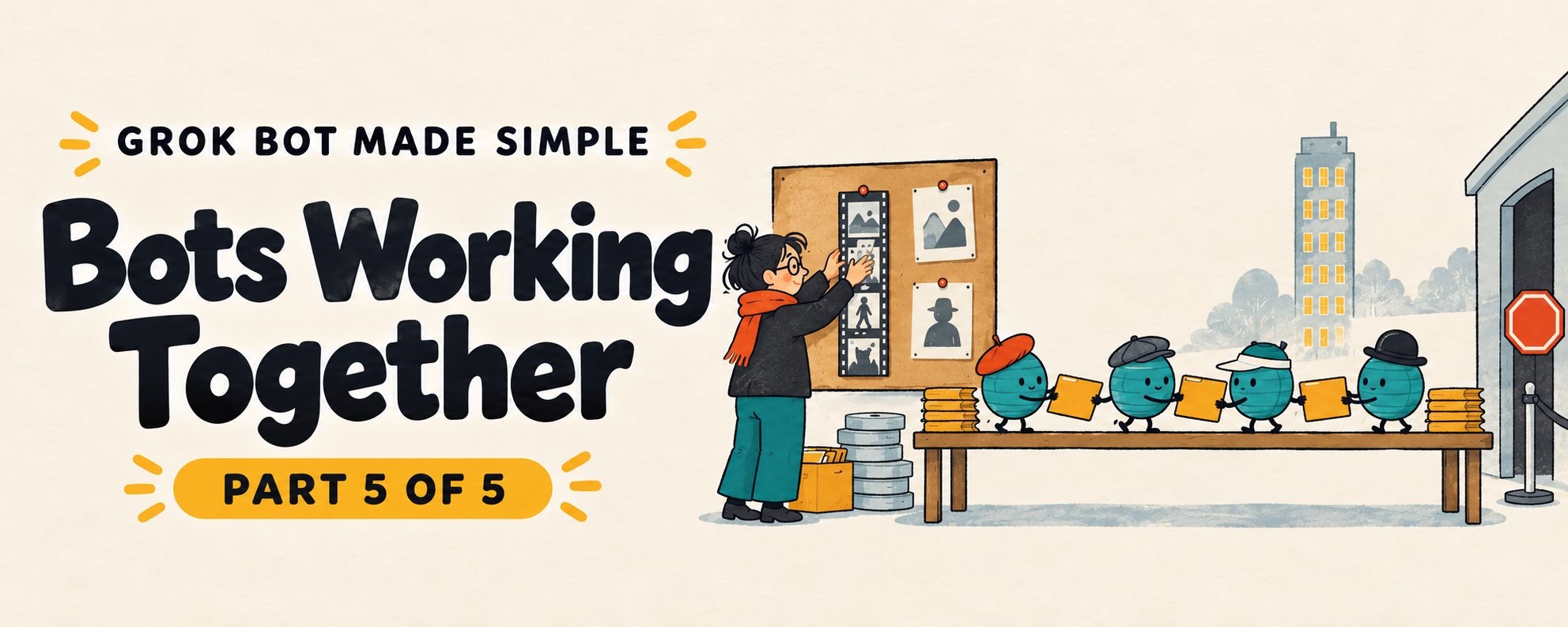
A small film club needs a programmer who chooses films, a publicist who writes the posters, and a treasurer who watches the ticket money. Nobody expects one volunteer to do all three well. The trouble starts when they do not talk to each other, or when the treasurer starts printing posters.
Managing multiple Grok Bots has the same shape: clear roles, visible handoffs, firm limits. This final article covers Bots working together, Team Bots for a whole group, security settings, and a troubleshooting ladder. A quick refresher for newcomers: a Bot is a named helper with one job, working on a shared cloud computer, with approval available for consequential actions depending on your settings.
When to add a second Bot
Create a separate Bot when work has a distinct goal or owner, set of tools, working style, approval boundary or schedule. For a crew:
-
Start with one Bot owning an end-to-end outcome.
-
Add another only for a stable specialist role.
-
Use a group chat when handoffs should be visible.
-
Keep external actions behind a clear approval boundary.
Resist the urge to build ten Bots in an afternoon. You can ask existing Bots to keep the roster small. For a hypothetical film club, begin with Programmer. Add Publicist only once poster work becomes a repeating job.
Housekeeping tools help: pin active Bots to the top, hide ones you do not use (hiding does not pause routines), and duplicate a Bot to reuse a role at a new scope. A copy includes profile, settings, enabled skills, routines and avatar, but not conversation history, learned memory or attachments.
Group chats
Create one from New in the sidebar by selecting two to six Bots. A good kickoff names each role and a limit:
Programmer: shortlist six films and flag licensing questions. Publicist: draft poster text only after Programmer shares the list. Treasurer: estimate costs. Nobody sends or publishes anything.
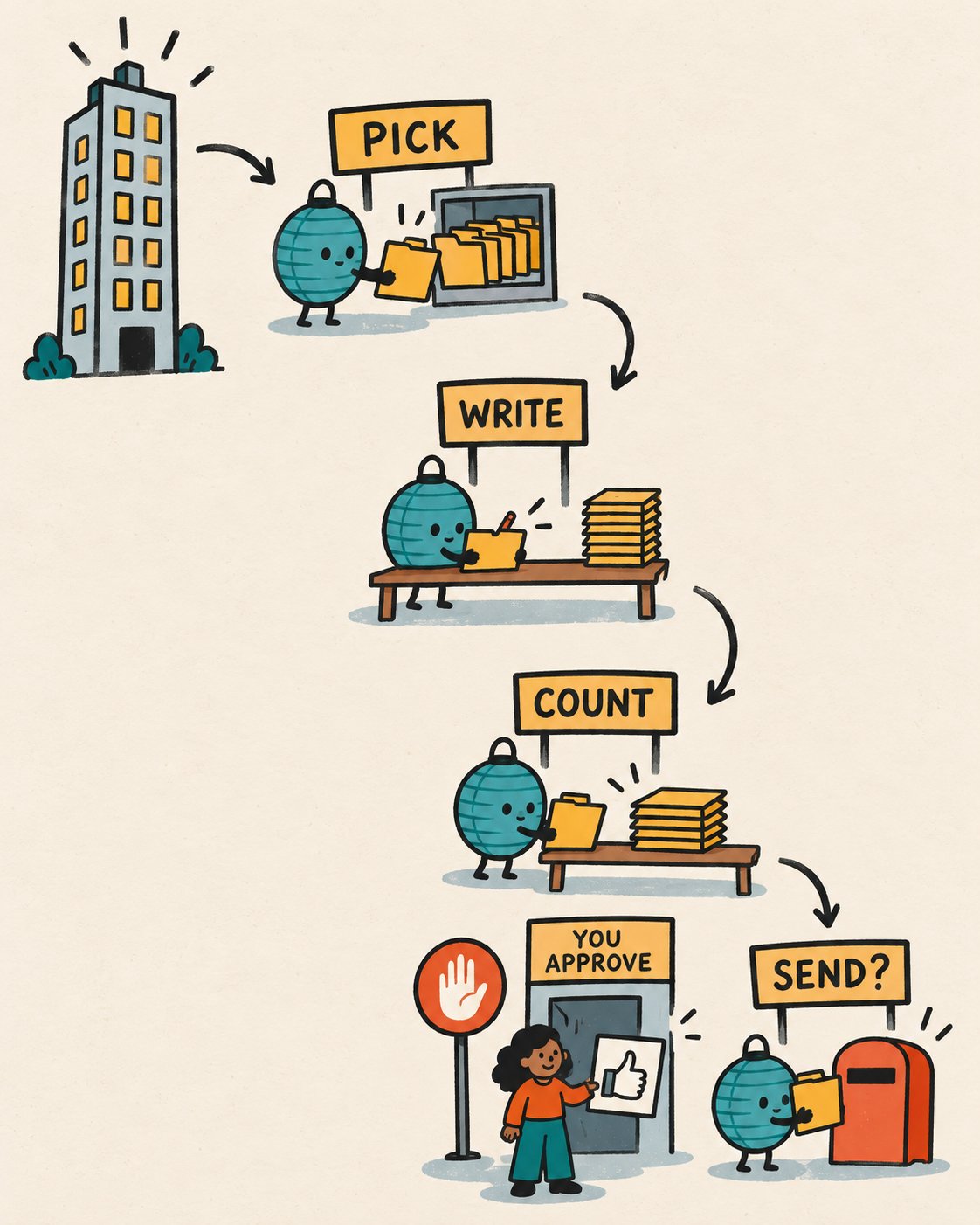
Steer messages deliberately. Write normally and let participants decide who answers. Use @ and pick one Bot when one teammate owns the request. Use Reply to direct an answer to a specific Bot. Save @everyone for group-wide updates.
Two limits to remember: approval requests, secret and login requests, and email or Slack drafts do not appear in a group. Do not count on these being rerouted anywhere else, so move any consequential work to a one-to-one conversation with the Bot, where you can review it before it acts. And if you have set permissive rules, such as Always allow or an Allow automatically rule, an action may run without any pause. And handoff messages inside the group are text-only, so if a teammate must see an image, the Bot should send it directly to that Bot.
Handoffs between Bots
A Bot can message another asynchronously. The receiver wakes, handles the request and may reply later, and you can see the handoff. It suits a Bot that owns a source system feeding a Bot that owns the deliverable, a specialist review, or a long job. Assign a single owner at each stage, because many parallel handoffs create duplicate work and noisy updates.
On Teams, an admin can switch off Messaging Between Bots on the Grok Bot page of the dashboard. It is on by default.
Sharing a Bot: templates
Share menu, Create template, then choose Public link or Team-only. Enterprise accounts default to Team-only, and other accounts to a public link. The recipient previews on x.ai and chooses Add to Grok Bot, which makes a copy only. It does not hand over your computer, logins or history.
The catch: a public link exposes the configuration, including identity, description, skills and routines. Remove API keys, internal URLs and customer data first. Bots from other users are third-party, and adding one means accepting the third-party bot terms.
Team Bots: one Bot, many people
When a whole team needs the same helper, use a single Bot the owner sets up once with plugins, secrets, skills and files, then publishes. Each teammate gets a private conversation. Key facts:
-
Teammates chat from desktop, mobile or Slack. Chats are private, so the owner cannot read teammates' chats.
-
Sign-in plugins use the account of the person talking to the Bot. One person's access is never passed to another.
-
Team memory is read by every conversation. Per-person notes stay private. The Bot saves to team memory only when told the whole team should know, and says so.
-
Secrets are encrypted, used by name, shown as [REDACTED] in output, with a limit of 25 per Team Bot. Everyone's conversations can use every secret, so prefer scoped, read-only keys.
-
Only the owner and managers change setup. Only the owner publishes or unpublishes. The owner or a team admin can delete.
-
Routines are personal. They run as the person who created them and count against that person's usage.
-
Approvals have an exception. In a conversation where nobody can answer an approval card, a Team Bot runs without Auto-review, within its configured permissions, unless your team requires Auto-review. Keep configured permissions conservative: scoped read-only keys, and no sending, publishing or purchasing abilities unless truly needed.
Unpublish rather than delete if you might want it back, since deletion is permanent and removes it for everyone. Admins can set which groups get a Team Bot by default, and Enterprise audit logs record Team Bot events. For a personal assistant using your own accounts and memories, a personal Bot is the better choice.
A Team Bot can also get its own Slack app. It answers DMs, responds when @mentioned in channels it was added to, and then follows that thread. Teammates must link their Slack account once under Settings, General, Team Bots.
Setting limits that hold
These are the points that matter most.
Approval cards. They show the proposed operation and inputs. Choose Allow once, Always allow or Deny. Check target, scope and values. Do not approve what you cannot identify. Ask for an explanation or a draft first.
Auto Review. Under Settings, General, Auto-review. Ask first rules always stop matching actions. Allow automatically rules proceed only if the automated review finds no other reason to stop. If both match, Ask first wins. Admins can enforce team rules, and your personal rules can only make behavior stricter. Write narrow rules. Auto Review is model-based and supplements, but does not replace, least privilege and explicit approval.
Where to write boundaries. Put standing limits in each Bot's description and set Ask first rules for sending, publishing, deleting, purchasing and changing production systems.
Privacy basics. Grok Bot uses Cursor authentication and account data settings, requires cloud storage, and does not support Legacy Privacy Mode. Training opt-out follows the applicable Cursor settings.
Removing access properly
When a project ends:
-
Pause or delete related routines.
-
Sign out of websites on the shared computer.
-
Uninstall connectors and revoke authorization at the source.
-
Remove sensitive files from /workspace.
-
Hide or delete Bots you no longer need.
Deleting a Bot alone leaves files and sessions behind.
The troubleshooting ladder
Begin with the gentlest step.
If you contact support, gather the app version, operating system, exact error, Bot or routine name, time and time zone, and any request ID. Never include passwords, codes or secret values.
Practice: stress-test your crew
Hypothetical drill, no real accounts needed:
-
Sketch two Bots on paper with one job sentence each.
-
Write one forbidden action for each.
-
Write the single handoff between them: who sends, who receives, what file name.
-
Imagine the approval card for the riskiest step. What would you want to see on it?
If any answer is vague, the Bot will be vague too. A crew works because someone decided, early and in plain words, who owns what.
Published on grokbot.sh. Cite the public log, not a prompt pack.