
Grok Bot Made Simple: Set Up Your First Bot (Part 1 of 5)
Imagine hiring someone who keeps notes on what you tell them, so you do not start from zero every time. You give them a name tag, a job, and a desk. You leave for the day. The desk light stays on.
Article
Job breakdowns
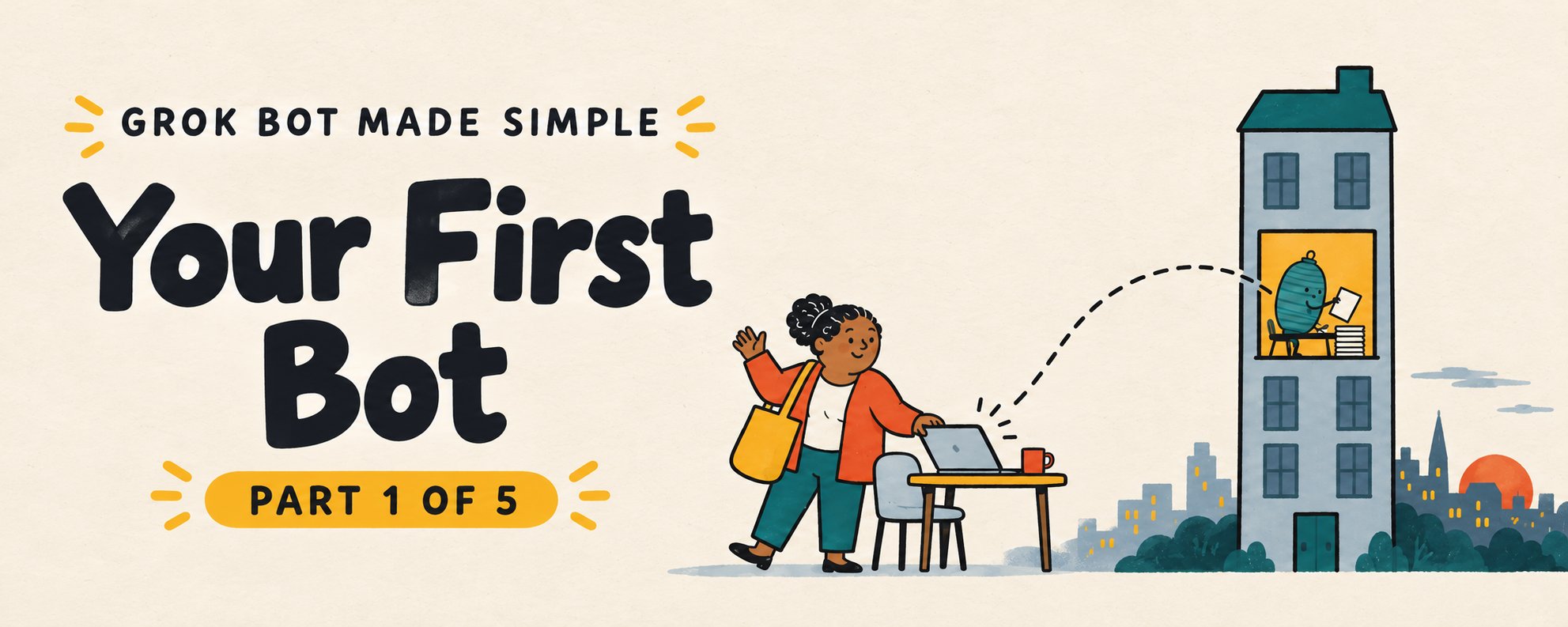
Imagine hiring someone who keeps notes on what you tell them, so you do not start from zero every time. You give them a name tag, a job, and a desk. You leave for the day. The desk light stays on.
That is the picture to hold while you learn Grok Bot. You create persistent "Bots," each with a name, a job, and context that builds over time. Each one works on a cloud computer with a browser, a file system and a terminal. The result is a worker who does tasks inside real tools, not only a chat window that writes drafts.
This first article takes you from zero to a working first task. You need no technical background.
The ten-second difference
Most people meet AI as a conversation. You type, it answers, you copy the answer somewhere else.
Grok Bot changes who does the carrying. A Bot handles work across apps and websites, reports progress in the conversation, and comes back to you when it needs a decision. Work continues in the cloud even when your laptop is closed.
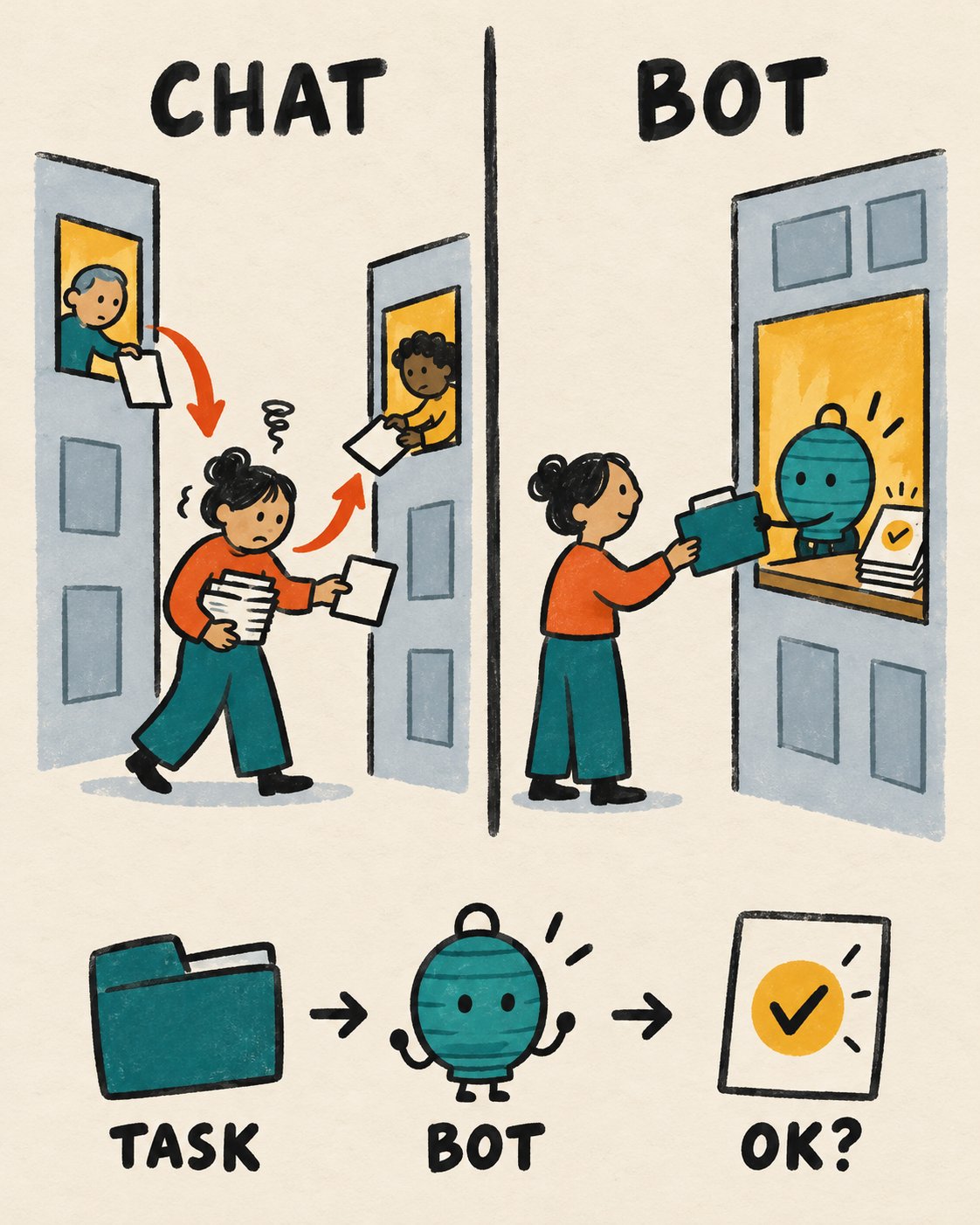
Three words will carry you through the whole series:
-
Bot. A named helper with one job and its own conversation.
-
Task. A piece of work you hand it.
-
Approval. A pause where the Bot shows a proposed action and waits for your decision. You can set rules for when that pause happens.
Hold on to approval. It is what makes this comfortable for newcomers. The Bot sends drafts and voice memos for your approval. Automatic rules also exist, so check your settings and the Bot's description rather than assuming every action will pause.
What you need before starting
The requirements:
-
An eligible plan. That is any paid individual Cursor plan, the Cursor Teams plan, or an individual SuperGrok, SuperGrok Plus or SuperGrok Heavy subscription linked to your Cursor account.
-
The Grok Bot app for macOS, Windows or Linux. There is also a phone version for iPhone, iPad and Android.
-
Cloud data storage turned on. Grok Bot needs it, and accounts on Legacy Privacy Mode must switch to a supported setting before it will start.
Plans change, so check the current Cursor plans page for what is included and how usage works. Usage resets weekly.
Install and sign in
The steps:
-
Download the app from the downloads page on x.ai/bot.
-
On a Mac, pick Apple silicon or Intel (About This Mac shows a "Chip" or "Processor" line). On Windows, pick x64 or Arm64 (Settings, System, About). On Linux, pick the package that matches your distribution.
-
Choose Sign in. A browser window opens for the Cursor login. Return to the app when the browser confirms.
-
If your access comes from SuperGrok, link it when asked. On desktop that lives under Settings, then Usage & Billing.
The first launch introduces Bots, the shared computer and routines, and asks which tools you use. Those answers only shape suggestions. They do not connect anything. Setup runs in the background and can take a few minutes.
Give your Bot a job, not a vibe
Next comes the "Meet a future teammate" screen. Pick a suggestion or choose Create your own. You define three things: a short name, one primary job, and a description of how it should work.
Vague roles are a problem. A "General Helper" gives the Bot little guidance and makes saved context harder to reuse. Roles like Expense Manager or Bug Reproduction work better.
Here is a practice example, entirely hypothetical. Suppose you rent an apartment and your lease is fourteen pages long.
-
Name: Clause
-
Job: Reads rental paperwork and tells me what I need to remember.
-
How it works: Plain language. Always cite the page. Never edit my original files. Never send anything to anyone.
Notice the last two lines. The description is where durable rules live. Put standing boundaries such as "Never send external messages without approval" right there.
Your first task, using no accounts at all
A starter task needs no login and no connector. Attach a document and ask for a summary with structure. You can do this with your own lease, a school newsletter, a warranty, or any PDF.
Use this wording:
Summarize the attached document in five bullets. Then, in a separate section, list every date, decision and open question, each with its page or section. Do not change the original file.
Attach the file with the paperclip control, drag it in, or paste it. On desktop you can attach up to six files at once. Documents, images and audio can be 25 MB each, and video up to 200 MB. If the file is encrypted or unusual, export it as a PDF or plain text first.
You can also speak instead of type. On desktop, press Cmd or Ctrl plus D, talk, and the words appear in the box so you can fix them before sending.
The five-part request
A good request has five parts. Here they are with the lease example:
-
Outcome. A summary I can read in two minutes.
-
Sources. The attached lease only.
-
Constraints. Do not change the file. Ask me before guessing.
-
Deliverable. Five bullets plus a dates-and-decisions list.
-
Review point. Stop and show me before doing anything else.
You do not need all five every time. For your first week, include them anyway. It is like learning scales on a piano: dull for a day, useful for years.
Read the result like an editor
When the answer comes back, do not simply accept it. Check three things:
-
Does every date have a page reference? Open the page and look at two or three.
-
Is anything missing that you know is in the document?
-
Is any sentence confident about something the document never says?
If the output is wrong or poorly formatted, tell the Bot. Ask for fixes, and state lasting preferences outright ("always give me dates in a table"). Also ask for revisions to the existing result rather than a new disconnected copy.
Things to leave alone for now
Begin small. Start with read-only tasks and drafts, and connect only the tools a job needs. Skip these until you have a few comfortable runs:
-
Connecting email, calendars or payment accounts
-
Scheduling anything to run on its own
-
Sharing your Bot with other people
Later articles cover connectors, scheduled routines and sharing.
A short glossary for your fridge
-
Composer: the box where you type or dictate.
-
Connector or plugin: a structured link to an app, usually more reliable than browsing a website.
-
Skill: a saved method for doing a task.
-
Routine: a workflow assigned to a Bot on a schedule or supported event.
-
Shared computer: the one cloud computer all your Bots use.
Practice before moving on
Pick a boring document. Run the starter task. Then try two follow-ups: "Which of these dates is most urgent?" and "What did you assume that the document does not actually say?" The second question is the more valuable habit. It teaches you to see where a helper's confidence outruns its evidence.
In the next article, you will learn to write clearer requests, which also makes the results easier to check.
Published on grokbot.sh. Cite the public log, not a prompt pack.